IRIS VISION

AI on cameras you already operate.

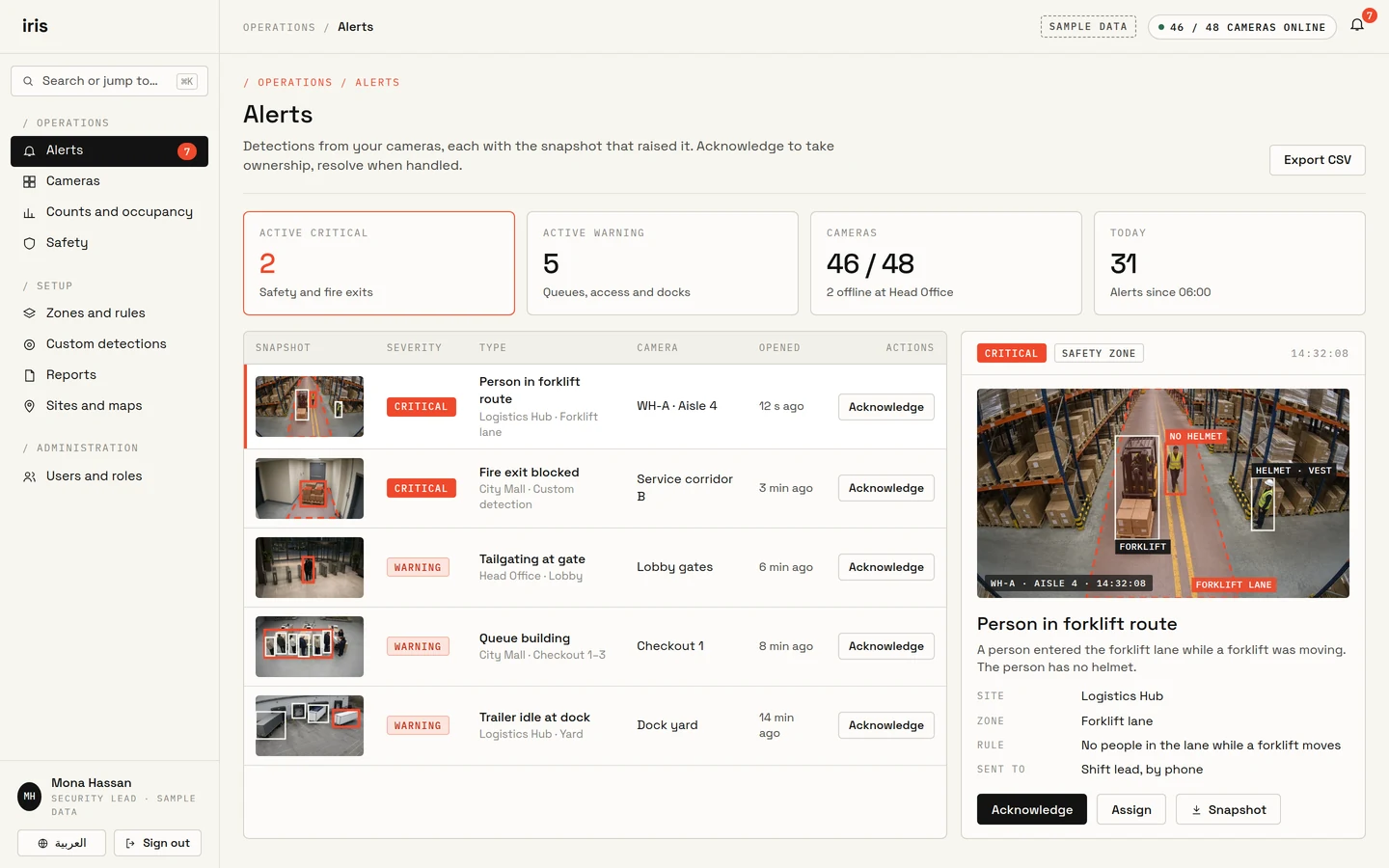
The alert inbox shows each event with a camera snapshot, the zone, and the time. IRIS AI analyses existing CCTV on a local server. Your team acknowledges and resolves from a laptop or a phone.

Free demo: IRIS installs a local server on your site for 2⁠–⁠4 weeks. Your camera feeds go to that server and stay with you. IRIS confirms details after a site review.

Iris Vision alert inbox with sample alerts, each with a camera snapshot, and an open alert showing a person in a forklift lane marked on the snapshot.
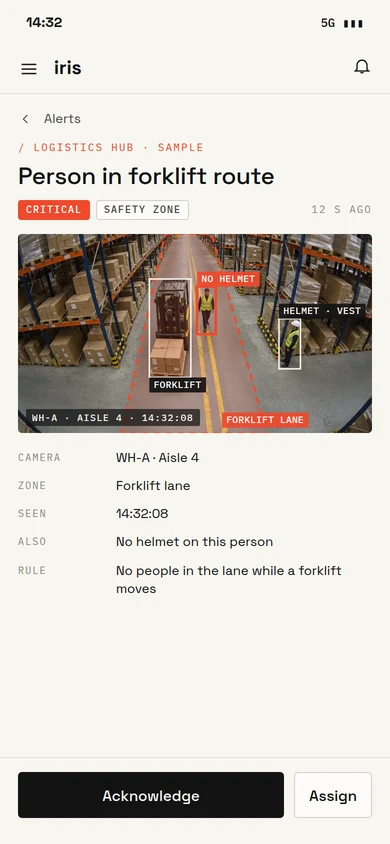
Iris Vision alert on a phone: a person in a forklift route, with the snapshot, camera, zone and time, and buttons to acknowledge or assign.

THE IRIS VISION APPLICATION

Alerts, cameras, counts, zones and reports.

Sample screens of the Iris Vision application. Each alert names the camera and the time, and retains a still of what the camera recorded.

ALERT INBOXSample data

Every alert arrives with a snapshot.

Each detection opens with the snapshot that raised it, the camera, the zone and the time. The assigned person receives it on a laptop or a phone, acknowledges it, and resolves it when it is handled.

  • Snapshot evidence with every alert
  • Routed to the right team, by site and zone
  • Acknowledge and resolve from a phone
Iris Vision alert inbox with sample alerts, each with a camera snapshot, and an open alert showing a person in a forklift lane marked on the snapshot.
Iris Vision alert on a phone: a person in a forklift route, with the snapshot, camera, zone and time, and buttons to acknowledge or assign.

CAMERASSample data

A still from each camera, with detections marked.

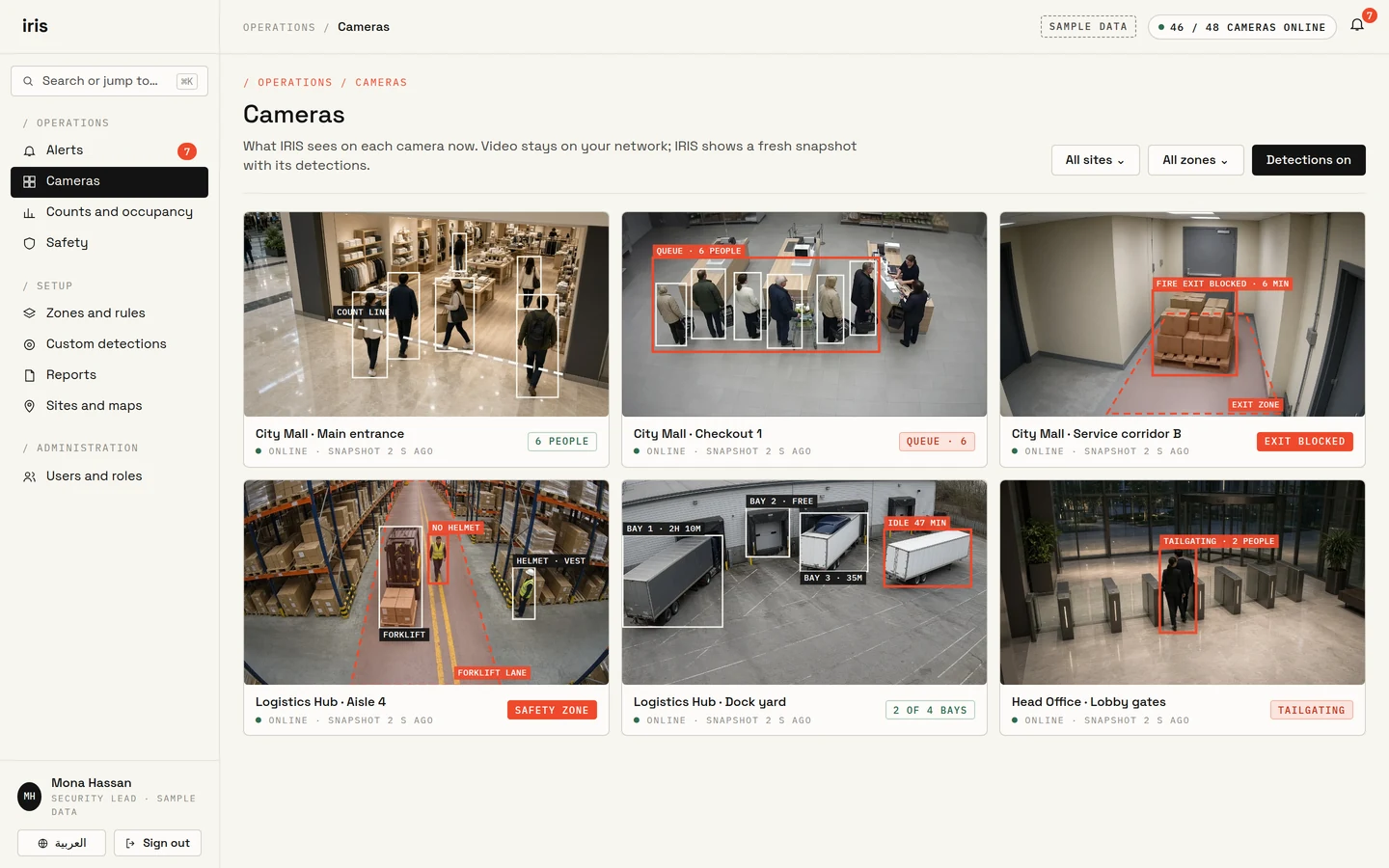
A grid of your cameras shows a still from each one, with detections marked on the image. The grid shows stills, not a video wall.

  • Detections marked on each camera
  • Filter by site and zone
  • Online and offline cameras at a glance
Iris Vision camera grid with six snapshots and their detections marked: a store entrance count, a checkout queue, a blocked fire exit, a forklift lane, dock bays, and tailgating at lobby gates.

COUNTS AND OCCUPANCYSample data

Footfall, dwell and occupancy, by hour.

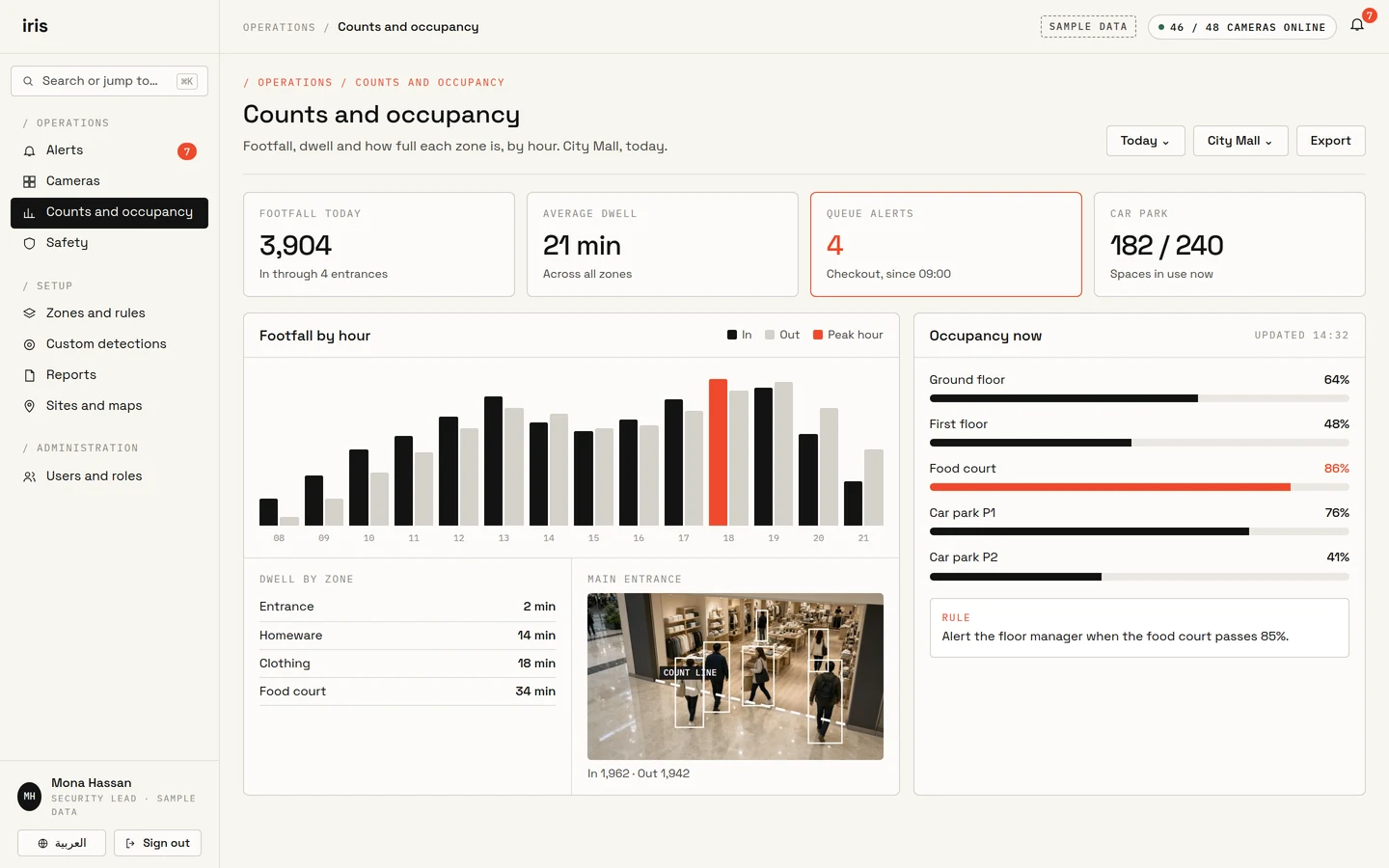
The dashboard shows how many people entered, how long they remained in each zone, and occupancy for rooms, floors, docks and car parks. Set a limit, and IRIS notifies the assigned person when a zone exceeds it.

  • Footfall in and out, by entrance
  • Dwell by zone and time of day
  • Occupancy limits with alerts
Iris Vision counts and occupancy dashboard with sample footfall by hour, dwell by zone, occupancy bars per zone, and a store entrance with a count line.
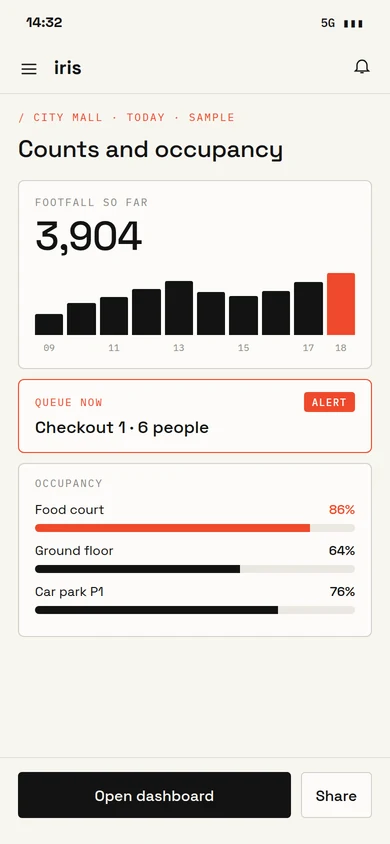
Iris Vision counts on a phone: footfall so far, a queue alert at checkout, and occupancy by zone. Sample data.

ZONES AND RULESSample data

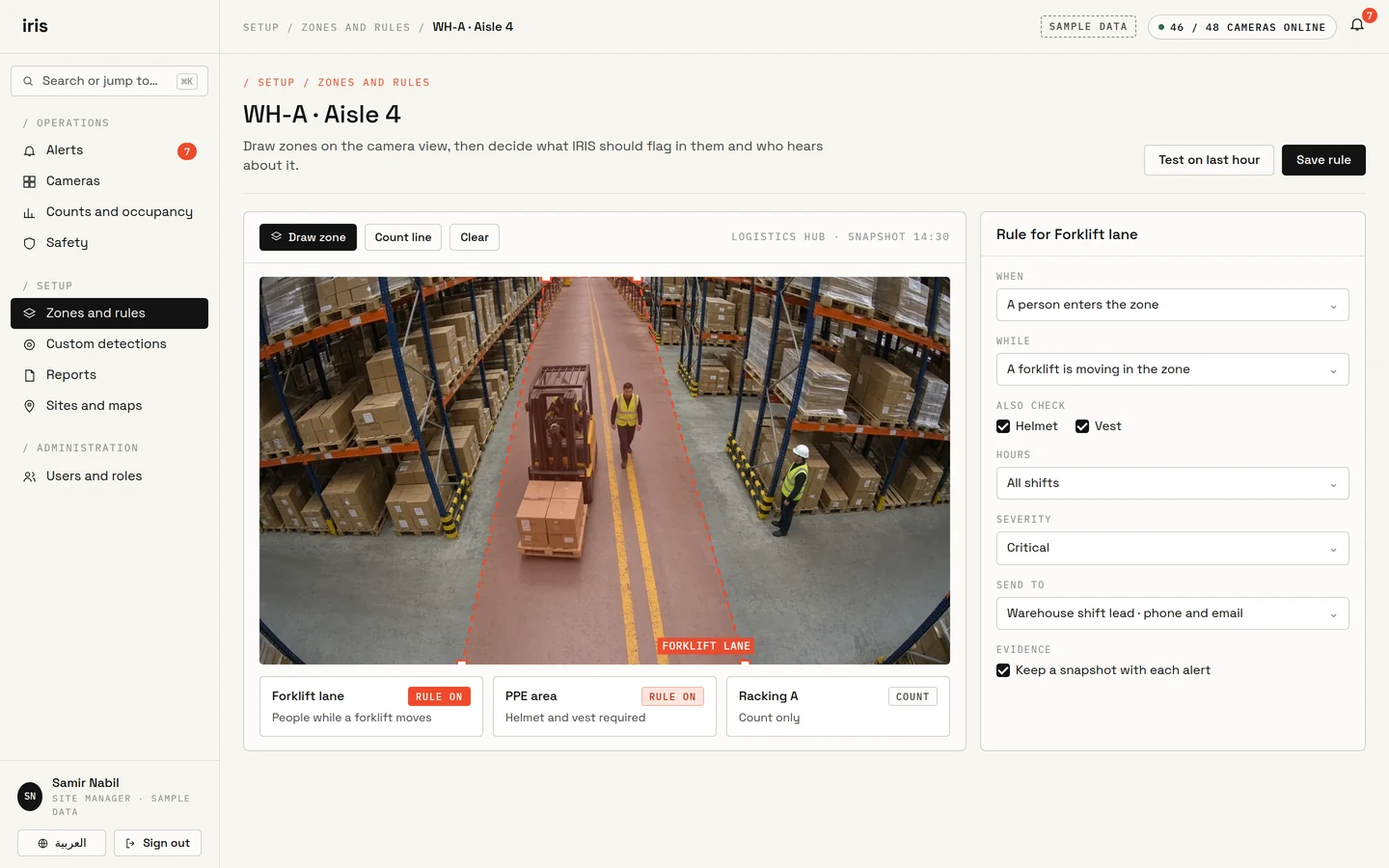
Define zones on the camera view, then set the rules.

Draw safety zones, count lines and areas on the camera view. For each one, choose what IRIS should flag, during which hours, how urgent it is, and who is notified.

  • Zones and count lines drawn on the view
  • Rules for people, vehicles and PPE
  • Hours, severity and who is notified
Iris Vision zone and rule setup: a forklift lane drawn on a warehouse camera view, with a rule for people in the lane, helmet and vest checks, severity, and who is notified.

DAILY REPORTSample data

A daily report, and a weekly one.

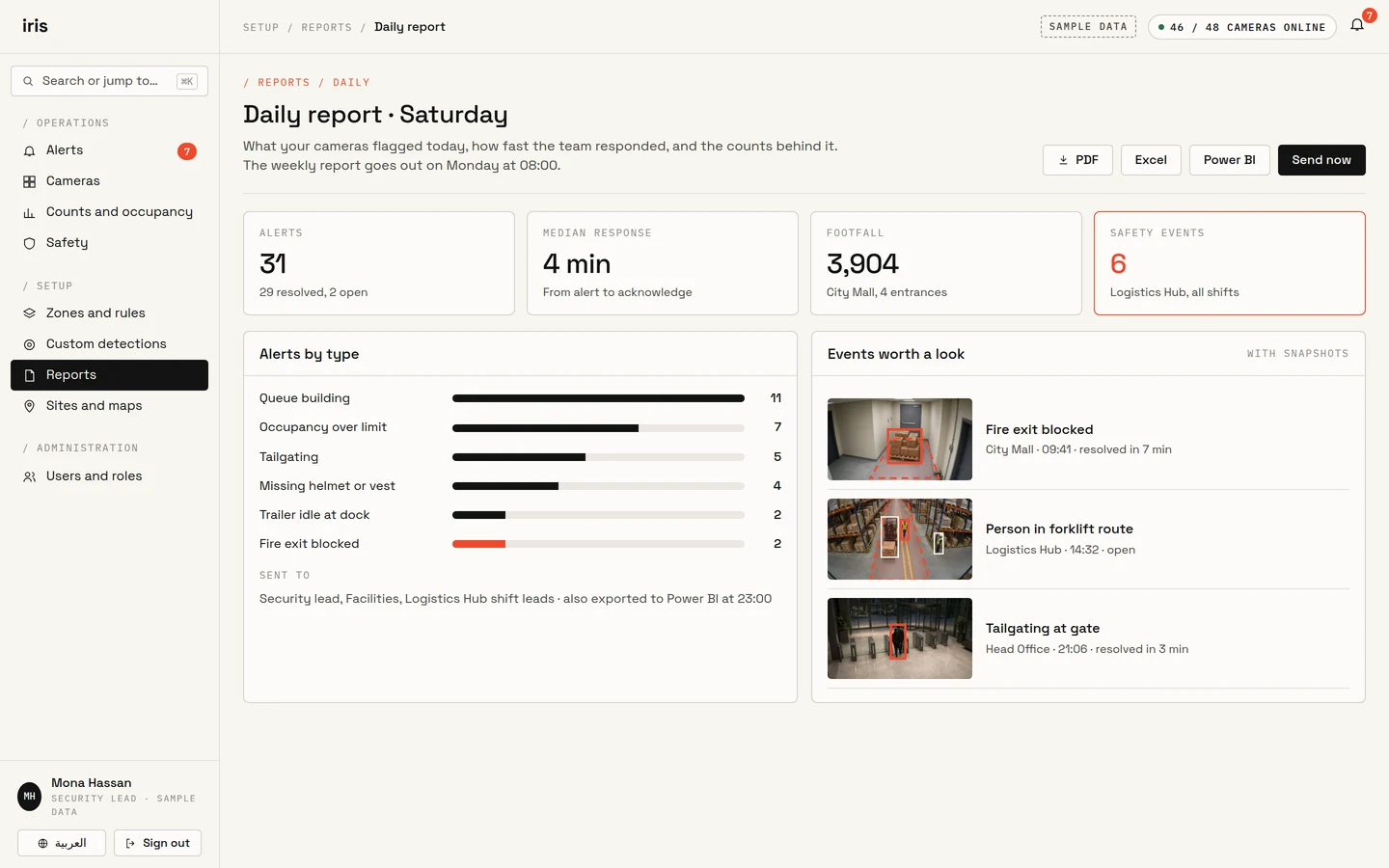
Each day IRIS summarises what the cameras flagged, how quickly the team responded, and the counts behind it, with stills of the events that warrant review. Reports are sent by email and open in Excel or Power BI.

  • Alerts by type, and response times
  • Stills of the events that warrant review
  • Exports to Excel, Power BI, SAP and Oracle
Iris Vision daily report with sample alerts by type, response time, footfall and safety events, snapshots of the events that warrant review, and export buttons.

IRIS AI

Train IRIS on what matters on your site.

With IRIS AI you can train detections for custom objects, events and information specific to your site. The IRIS AI team trains them on your own camera views, and you review them before they are used.

Request an IRIS Vision demo

For example

  • A pallet left in front of a fire exit
  • A gate or roller door left open after hours
  • A vehicle type that should remain outside a zone
  • A product display left empty on the shop floor
  1. Describe what to detect

    Describe it in your own words, and which cameras see it.

  2. The IRIS AI team trains it

    The detection is trained on examples from your own cameras.

  3. You review it

    You inspect the first results. Its alerts then reach your team like any other.

EXAMPLES

Examples of what IRIS can detect.

Four kinds of site, with examples for each. Hotels and hospitals use the same line, on cameras already installed. Your site can add its own detections.

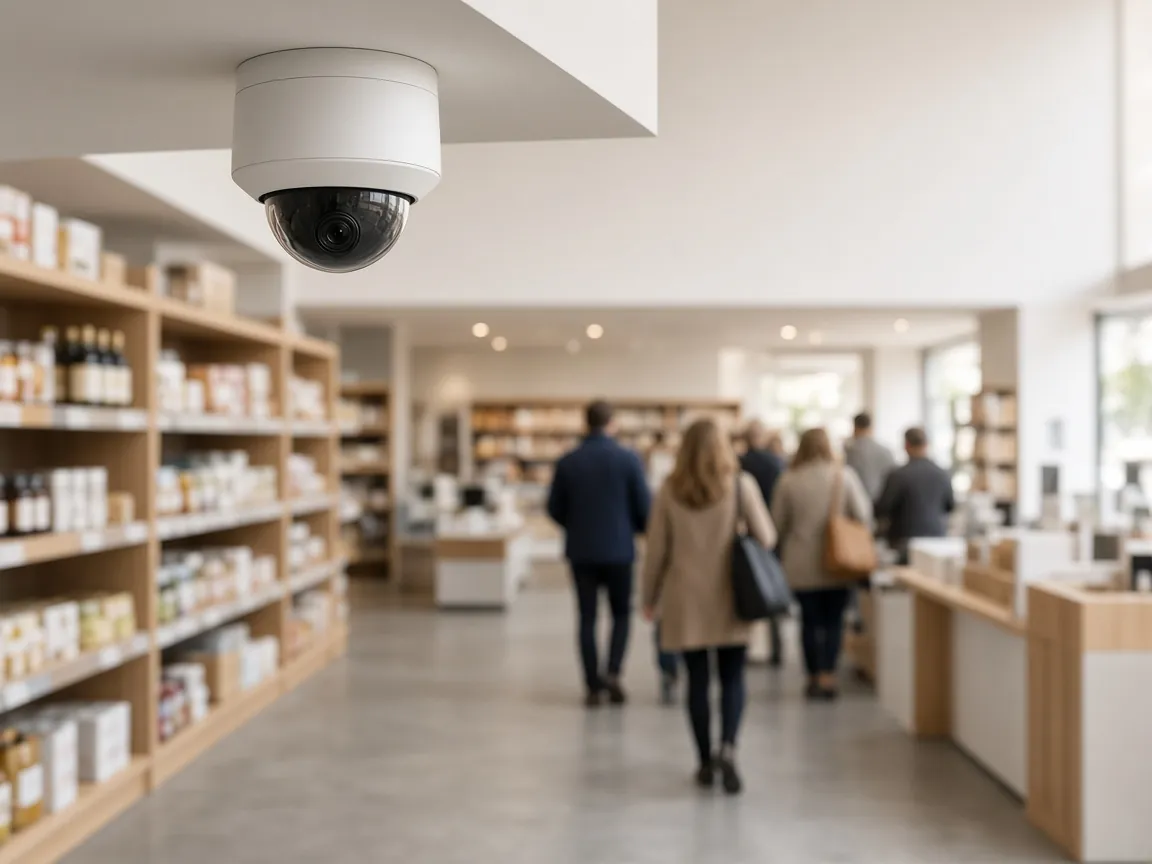
  • A dome camera above a shop floor, with shoppers queueing at a counter.

    Retail

    Shop floors, entrances and checkouts.

    Loss prevention
    Entrances, exits and high-value aisles, watched for the events you choose.
    Queue management
    Checkout queues building, so an additional till can be opened.
    Visitor analytics
    Footfall and dwell by zone and time of day.
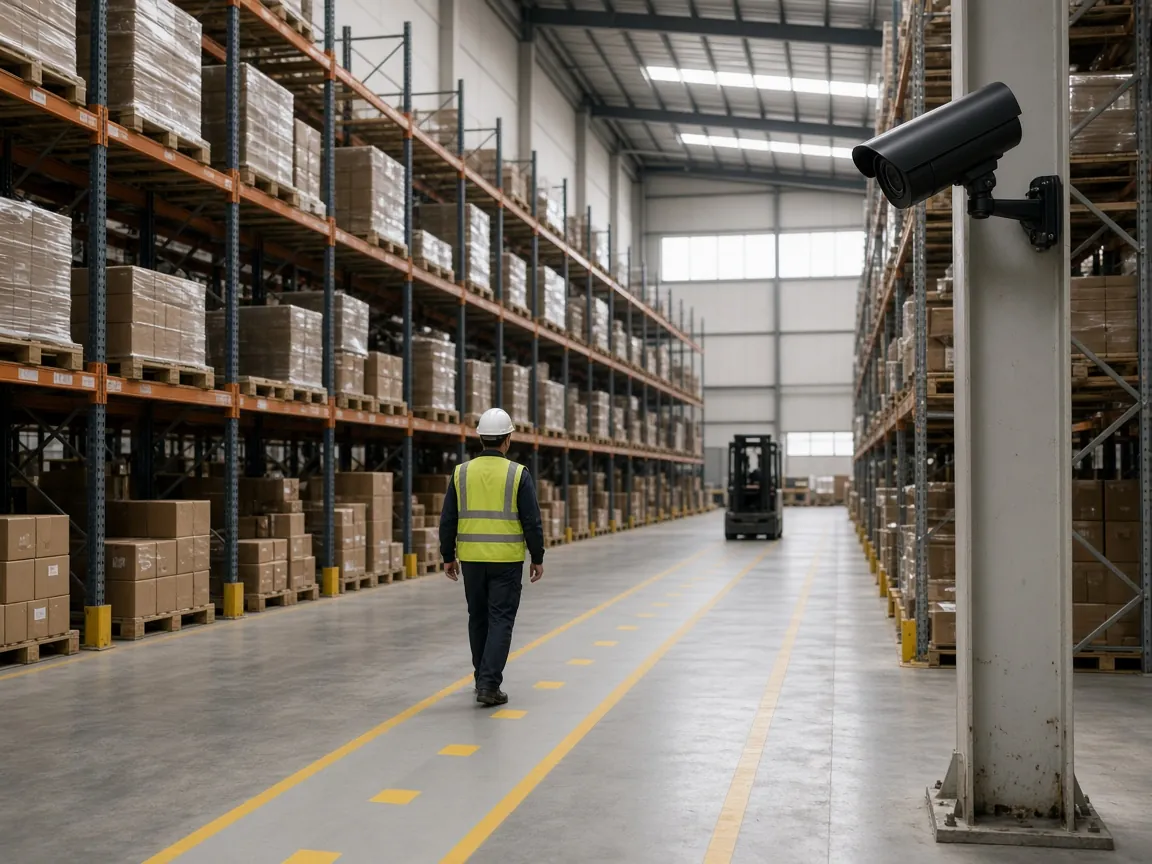
  • A camera on a warehouse column above a worker in a helmet and vest, with a forklift in the aisle.

    Warehouses and logistics

    Aisles, forklift routes and loading docks.

    Safety zones
    People entering forklift routes or restricted areas, flagged at once.
    PPE
    Missing helmets and vests, seen on camera.
    Dock activity
    Loading-bay occupancy and idle trailers, without inspecting the floor in person.
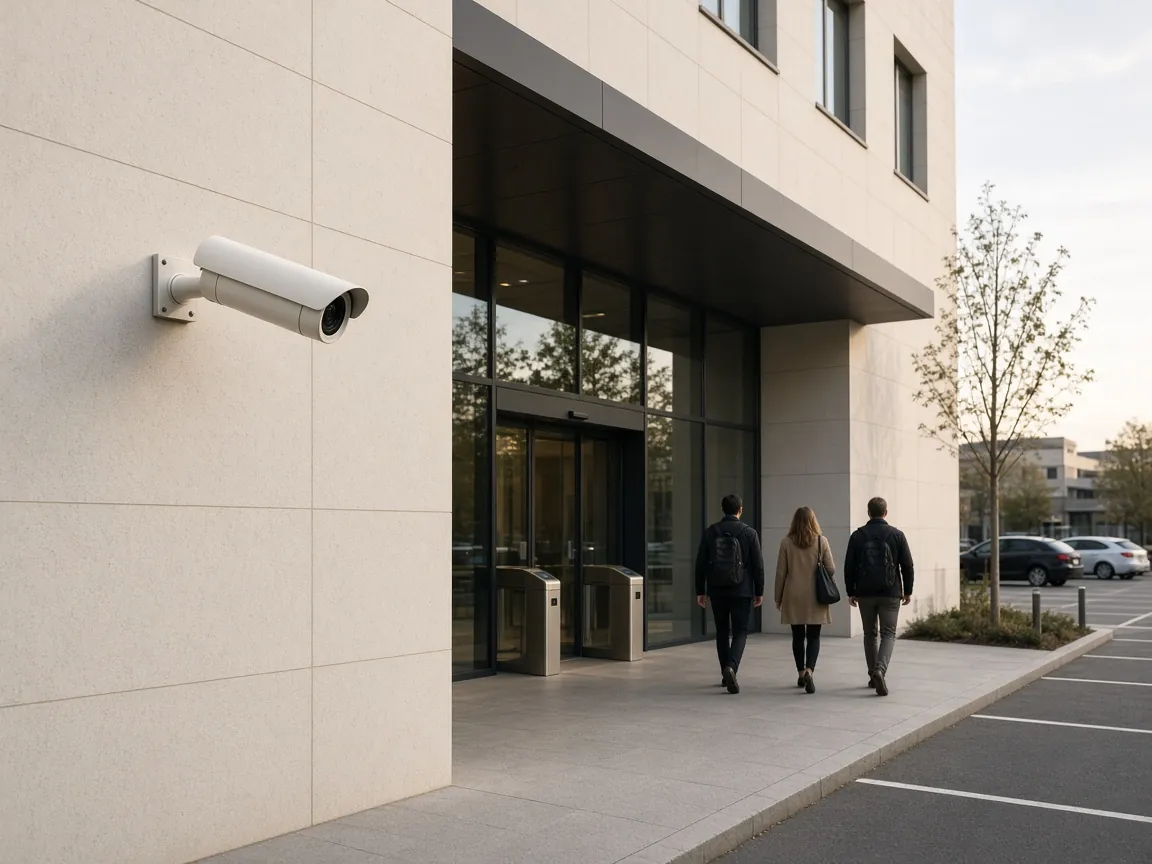
  • A camera on a stone wall above a campus entrance with turnstiles, and parking beyond.

    Corporate campuses

    Doors, gates, floors and parking.

    Access
    Tailgating and after-hours entry at doors, gates and parking.
    Occupancy
    How floors, rooms and parking are actually used.
    Perimeter
    Fence lines and blind spots, watched without adding guard posts.
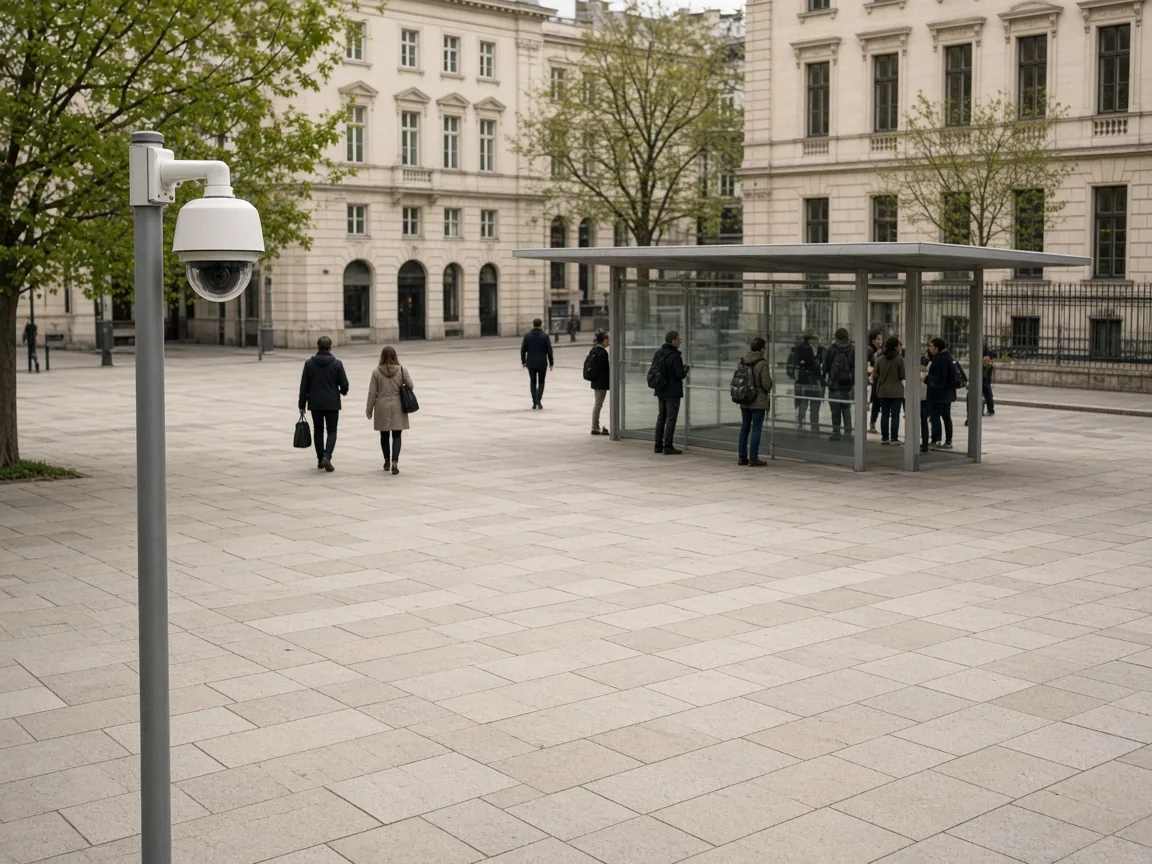
  • A white dome camera on a grey pole at the edge of a stone plaza, with people waiting at a covered tram stop.

    Cities and public spaces

    Plazas, corridors and transit stops.

    Public-space awareness
    Plazas, corridors and transit stops, seen through existing city cameras.
    Crowding
    Crowds building at stops and in plazas, flagged before they become a problem.
    Faster response
    Alerts routed to the assigned team, instead of waiting for complaints.

WHY IRIS VISION

AI on cameras you already operate.

IRIS installs a local server on your site. Camera feeds stay with you. Custom detections can be trained on your camera views.

  • Uses cameras already installed

  • IRIS installs a local server on your site

  • Camera feeds stay on your servers

  • Detects people and faces; storing is customizable

  • Custom detections trained on your camera views

  • The Iris Vision application in English and Arabic

PRIVACY AND DATA

Where video remains.

Camera feeds remain with you. After the demo, Vision data is deleted.

  • Where feeds go

    IRIS installs a local server on your site. Your camera feeds go to that server. Data never leaves your servers.

  • People and faces

    IRIS can detect people and faces; storing is customizable.

  • After the demo

    Vision data is deleted. Data never leaves your servers.

  • Which cameras work

    IRIS confirms which cameras can be used after a site review. This page does not list brands or a minimum count.

  • Who sees what

    People see only what their role allows. Each alert can retain a still of what the camera recorded.

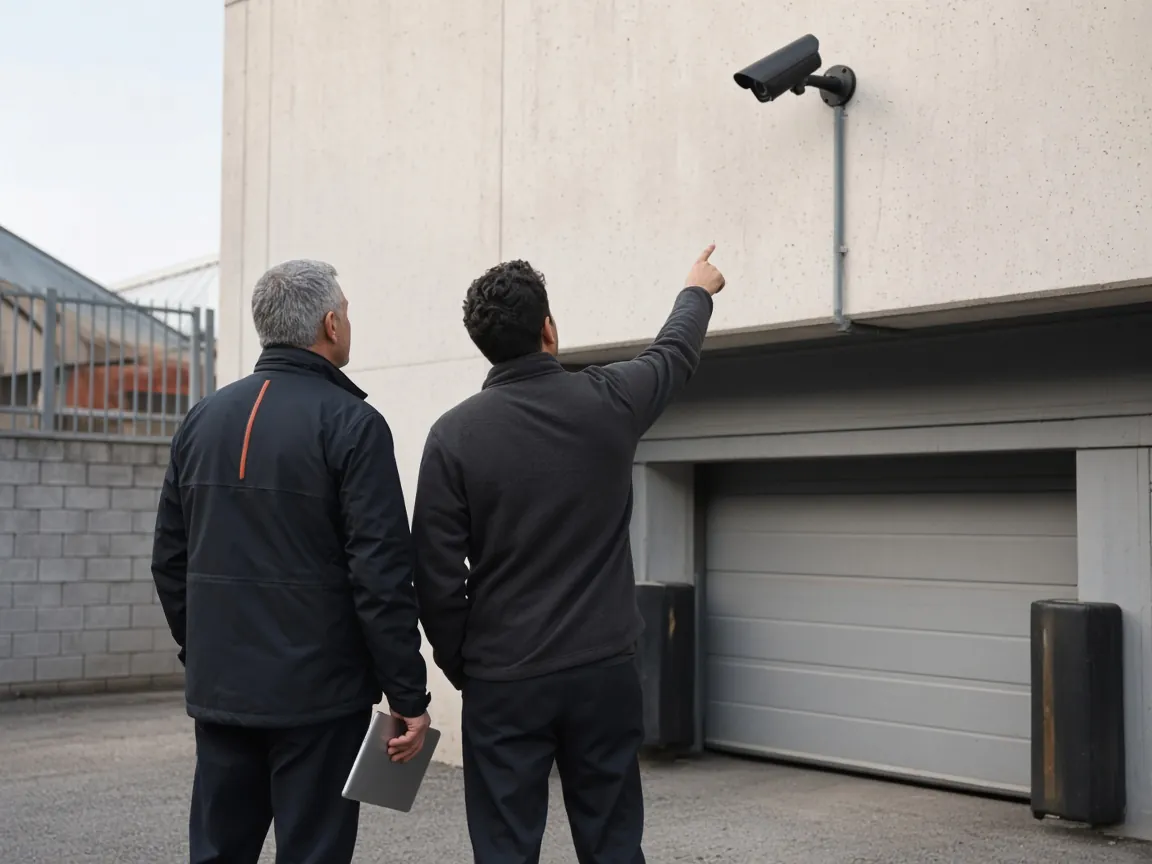
Two people on a site visit, one pointing at an existing camera above a loading door.

HOW YOU START

A free demonstration on cameras already on site.

Request an IRIS Vision demo. IRIS installs a local server on your site for two to four weeks. Your camera feeds go to that server and stay with you. IRIS confirms details after a site review.

Cameras
Already installed on your site
On site
IRIS installs a local server. Camera feeds go to that server
Duration
2–4 weeks, free

The free demonstration.

  1. Request

    Identify the site.

    Identify the site and the areas your cameras cover. IRIS replies by email within 24 hours on weekdays.

  2. Site review

    IRIS confirms the cameras and installs a server.

    Which cameras work is confirmed after a site review. IRIS then installs a local server on your site. Your camera feeds go to that server.

  3. 2–4 weeks

    Your team operates IRIS.

    Your team sees the alerts, counts and stills. After the demo, Vision data is deleted. Data never leaves your servers.

If you continue: rollout.

  1. Survey

    Review the sites and the cameras, and agree which areas and signals matter.

  2. Configure

    Draw zones and rules, assign who is notified, and connect your systems.

  3. Connect

    Camera feeds go to the local server IRIS installed on your site.

  4. Validate

    Review the first alerts and counts with your team before relying on them.

  5. Operate

    Daily dashboards, weekly reports, and a review with the IRIS team.

FAQ

Before you request a demonstration

Which cameras work?

IRIS confirms after a site review. This page does not list brands, resolution or a minimum number of cameras.

What is installed on site?

A local server. Your camera feeds go to that server and stay with you. IRIS confirms details after a site review.

Does IRIS detect people and faces?

Yes. IRIS can detect people and faces; storing is customizable.

Where is video kept, and for how long?

Data never leaves your servers. After the demo, Vision data is deleted. Storing during the demo is customizable.

Does it work with our other systems?

Reports, counts and alerts can go to the systems your team already uses, such as SAP, Oracle or Power BI.

What happens after the demo?

Vision data is deleted. Data never leaves your servers. Submitting the form is not a purchase.
REQUEST A DEMO

Run Iris Vision on cameras you already operate.

Identify the site. The IRIS team replies by email within 24 hours on weekdays.

Request a demo